Your AI assistant for code, chat and every page
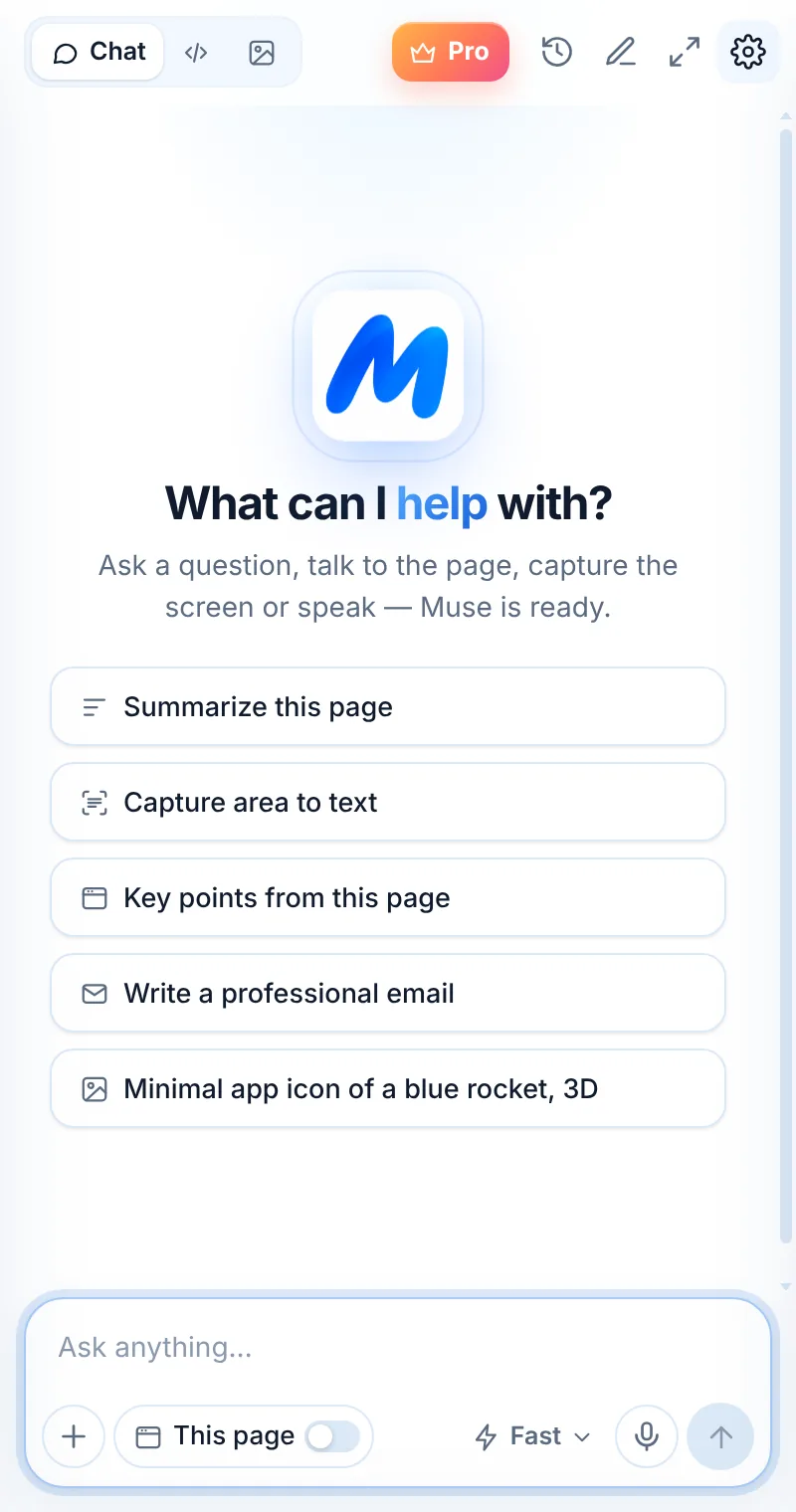
Muse AI Assistant lives in Chrome’s side panel. Ask anything, debug code, summarize articles, turn screenshots into text, speak instead of typing and create images — without switching tabs.

Everything you need, in one side panel
Three modes — Chat, Code and Image — plus page reading, screen capture, voice and right-click actions. Muse sits next to the page you are working on, so you never copy-paste between tabs.
AI chat that knows the page
Ask anything and get clear, formatted answers in your language. Switch on “This page” to talk to the article you are reading.
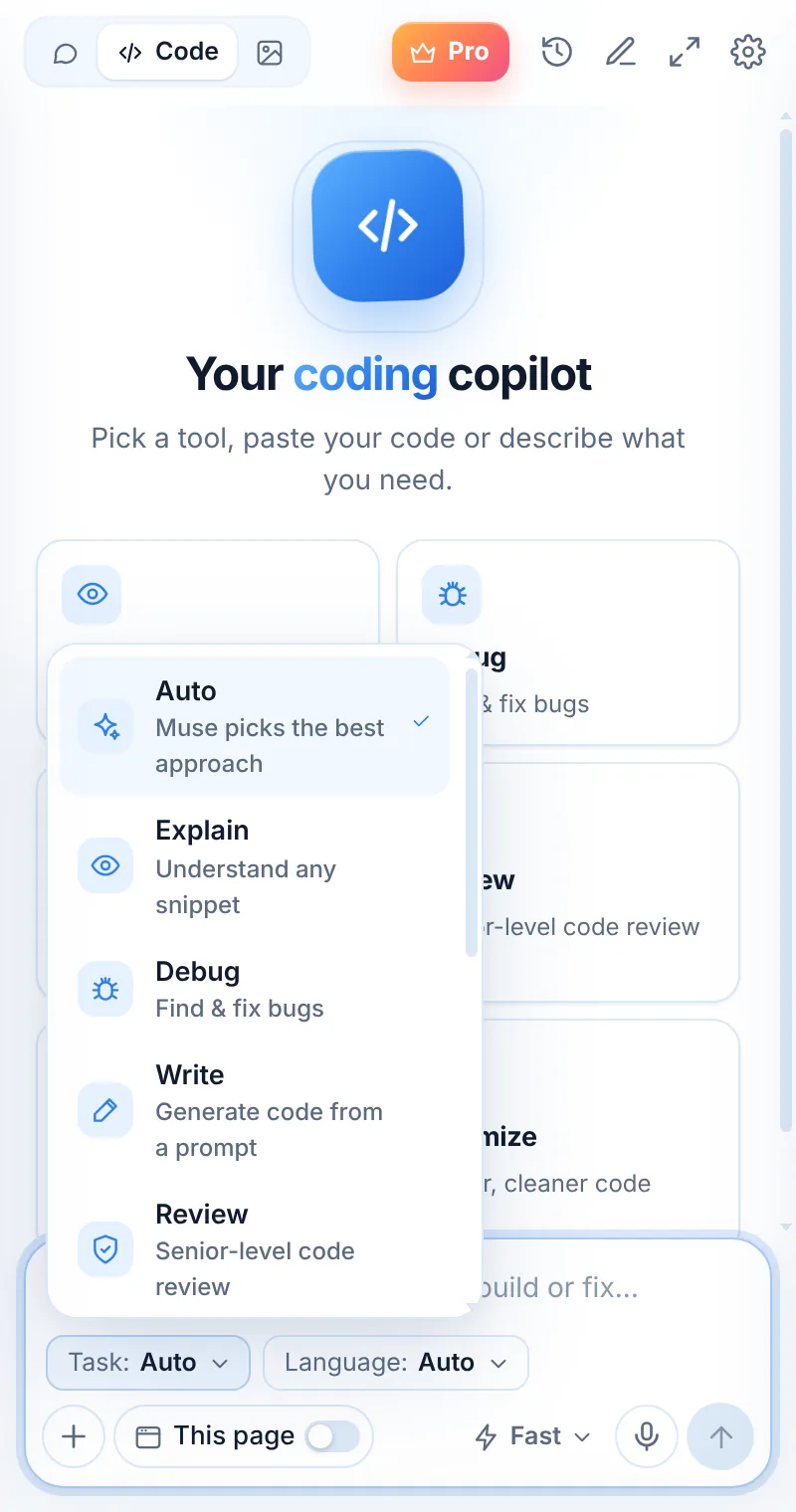
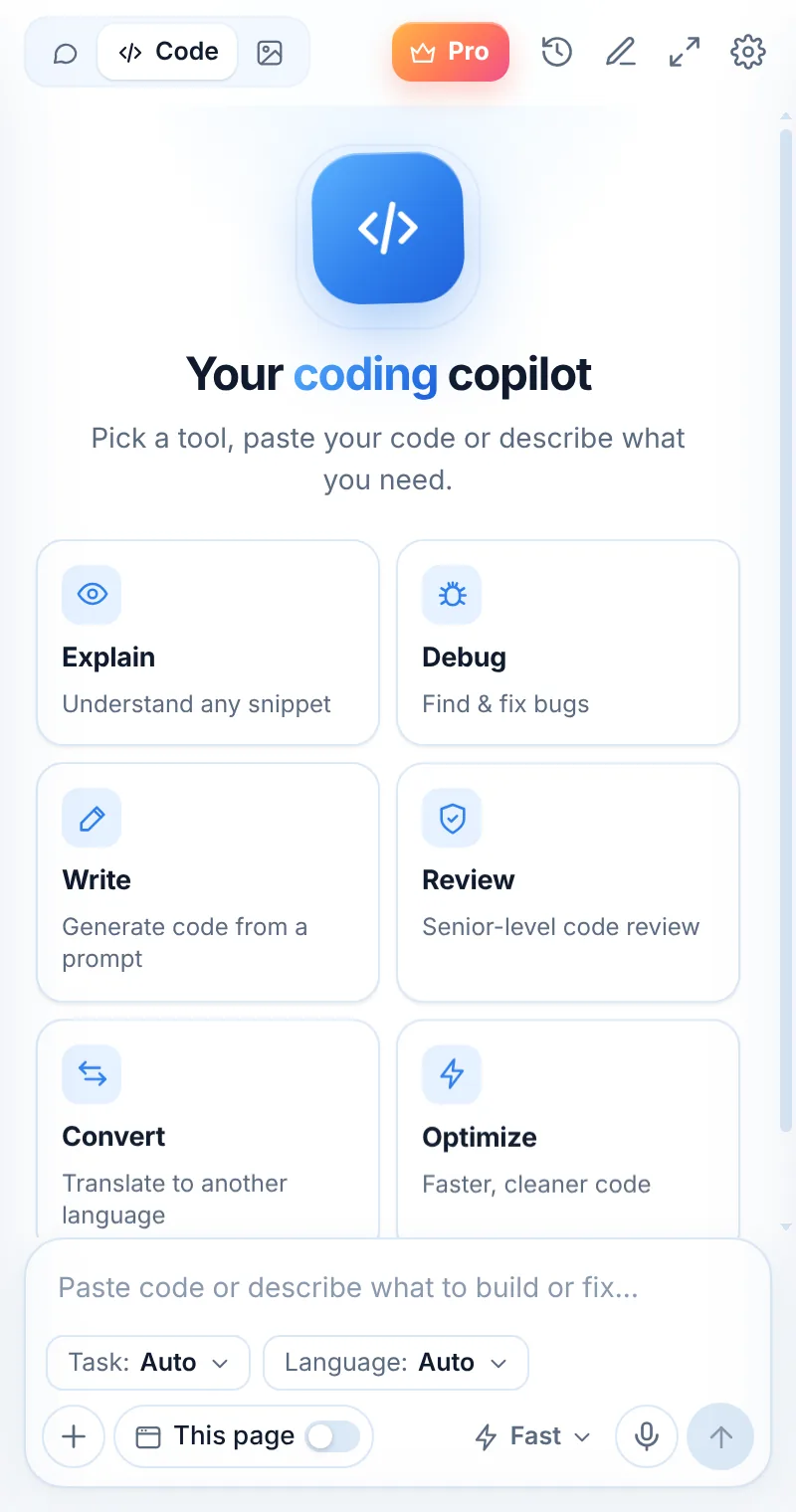
A coding copilot with 11 tools
Explain, debug, write, review, convert, optimize, test, regex, SQL and docs — with clean, highlighted output.
Summarize any page
Key points, takeaways and follow-up answers for any article, doc or blog post.
Learn moreScreenshot to text
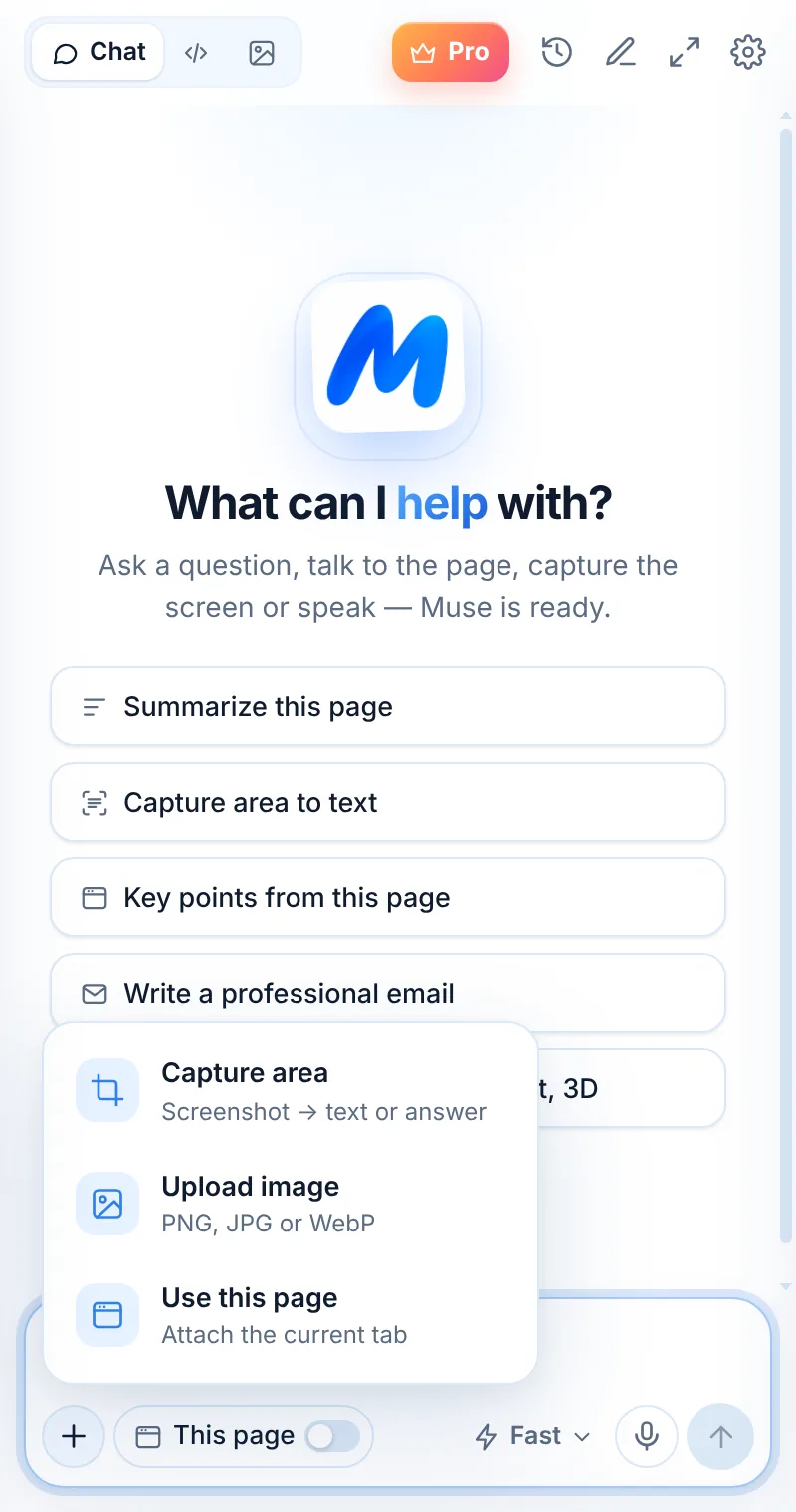
Drag over any part of the screen — Muse reads the text, tables or code and answers about it.
Learn moreVoice input
Tap the mic and speak. Muse turns your voice into a message in seconds.
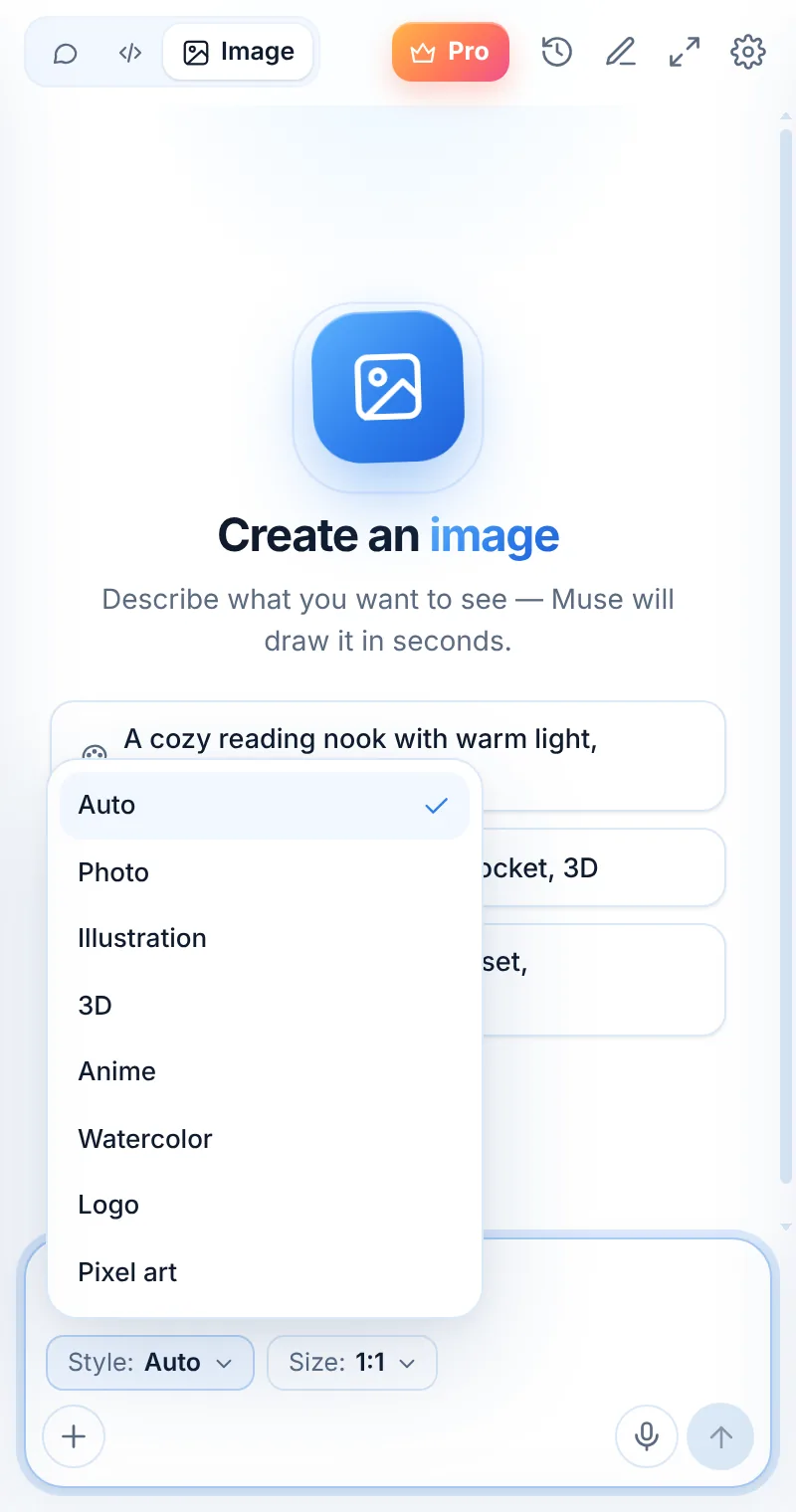
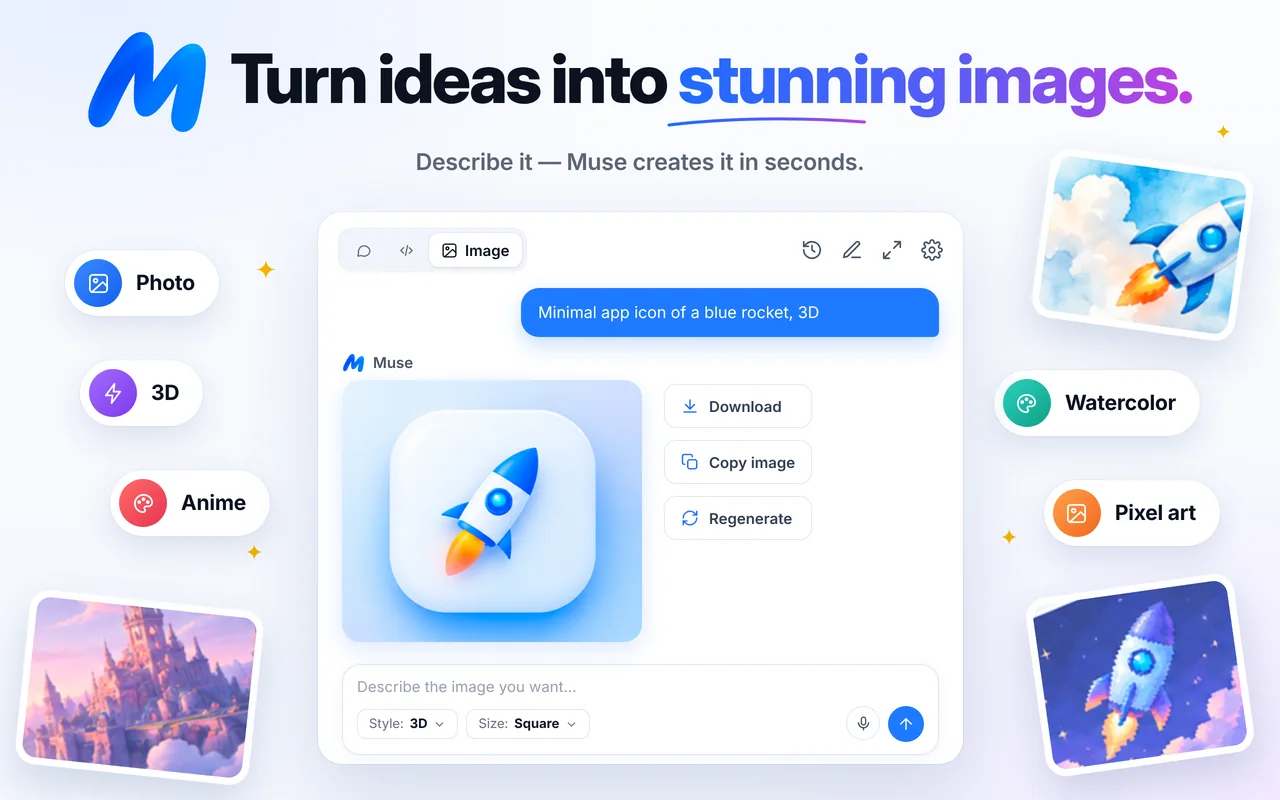
Learn moreCreate images from a sentence
Pick a style — photo, 3D, anime, watercolor, logo, pixel art — and a size. Download or copy the result.
Right-click AI
Select text anywhere and pick an action — Muse opens with the answer.
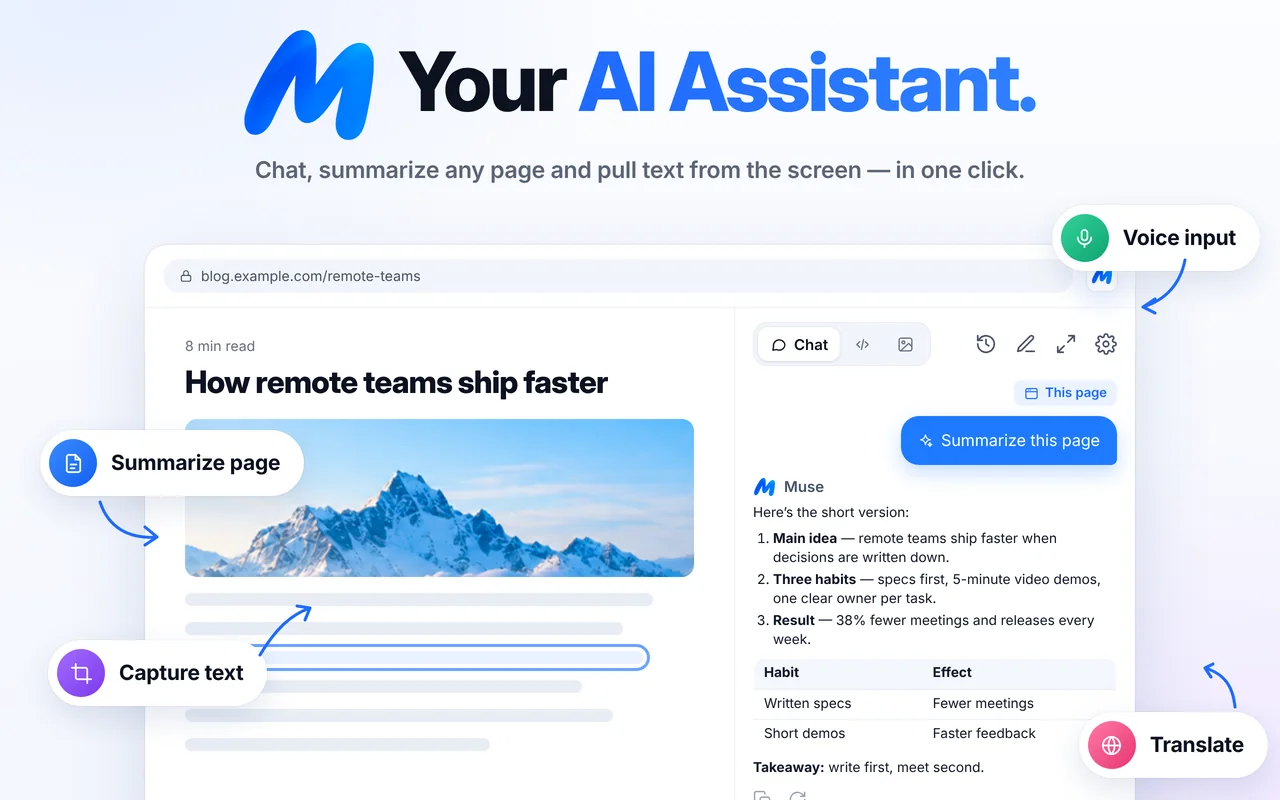
Learn moreTalk to any web page like it’s a document
Turn on “This page” and Muse reads the article you are on — only when you ask. Get a summary, pull out the facts or keep asking follow-up questions.
- Summaries in a few clear bullet points
- Key points and takeaways in one click
- Follow-up questions with the page as context
- Works on articles, docs, blogs and product pages
Debug faster with a senior engineer beside your code
Pick a task and a language, paste your code and get production-ready results with syntax highlighting. Or let Auto choose the right approach.
- Explain, Debug, Write, Review, Convert, Optimize
- Unit tests, Regex, SQL and documentation
- Language picker or automatic detection
- Copy-ready code blocks with highlighting
Turn any screenshot into text or an answer
Press Alt+Shift+S, drag over a chart, a table, a code snippet or an error dialog. Muse extracts the text, explains what it shows or solves it step by step.
- Extract text from images, tables and code on any website
- Explain diagrams, charts and UI
- Solve problems with steps shown
- Upload or paste up to 4 images per message
From error to fix in one conversation
Paste the snippet and the error message. Muse finds the bug, explains why it happens and gives you a fixed version — then writes the tests.
function avg(xs) {
  return xs.reduce((a, b) => a + b) / xs.length;
}
function avg(xs) {
  if (!xs.length) return 0;
  return xs.reduce((a, b) => a + b, 0) / xs.length;
}
Three steps to your AI side panel
Add Muse to Chrome
Install Muse AI Assistant from the Chrome Web Store. No account or sign-up needed.
Pin it and open it
Pin Muse to the toolbar, then click it or press Alt+Shift+L (⌘+Shift+L on Mac).
Ask, capture or create
Type or speak a question, switch on “This page”, capture an area or pick Code or Image mode.
Your data, your control
Before your first request, Muse shows exactly what it sends and when. You agree once — and you can delete everything any time.
Pages only when you ask
Muse reads a page, a screenshot or your voice only after you click “This page”, “Capture” or the mic. Never in the background.
Not stored on our servers
Conversations, page text, screenshots and recordings are processed to answer you and are not saved. Your history stays in your browser.
No ads, no tracking
No analytics, no trackers, no selling of data. Clear history or delete all your data in Settings in one click.
Learn moreStart free. Go unlimited when you’re ready.
Muse Free
2 AI requests per day with every feature: chat, code, pages, screenshots, voice and images.
Add to ChromeMuse Pro
Unlimited messages, coding help and image creation. Also $10.99/month, or $5.99/week with a 2-day free trial.
Compare plansQuestions, answered
What is Muse AI Assistant?
Muse AI Assistant is a free Chrome extension that puts an AI assistant in Chrome’s side panel. You can chat with AI, get help with code, summarize the page you are reading, turn a screenshot into text, speak instead of typing and generate images — without leaving your tab.
Is Muse free?
Yes. The free plan includes 2 AI requests per day with every feature. Muse Pro removes the daily limit: $5.99 per week with a 2-day free trial, $10.99 per month or $34.99 per year.
Does Muse read my pages in the background?
No. Muse reads a page only when you ask — for example when you turn on “This page”, use “Capture area” or a right-click action. Nothing is read in the background.
Where are my chats stored?
Your chat history stays in your browser. Conversations, page text, screenshots and voice recordings are processed to answer you and are not stored on Muse servers.
Which browsers does Muse work in?
Muse is built for Google Chrome (version 116 or newer) on Windows, macOS, Linux and ChromeOS. It uses Chrome’s side panel, so it works best in desktop Chrome.
How do I open Muse quickly?
Press Alt+Shift+L on Windows or ⌘+Shift+L on Mac, or click the Muse icon in the toolbar. Alt+Shift+S starts a screen capture.
Your AI assistant is one click away
Add Muse to Chrome for free. Two AI requests a day on the free plan — upgrade only if you need more.