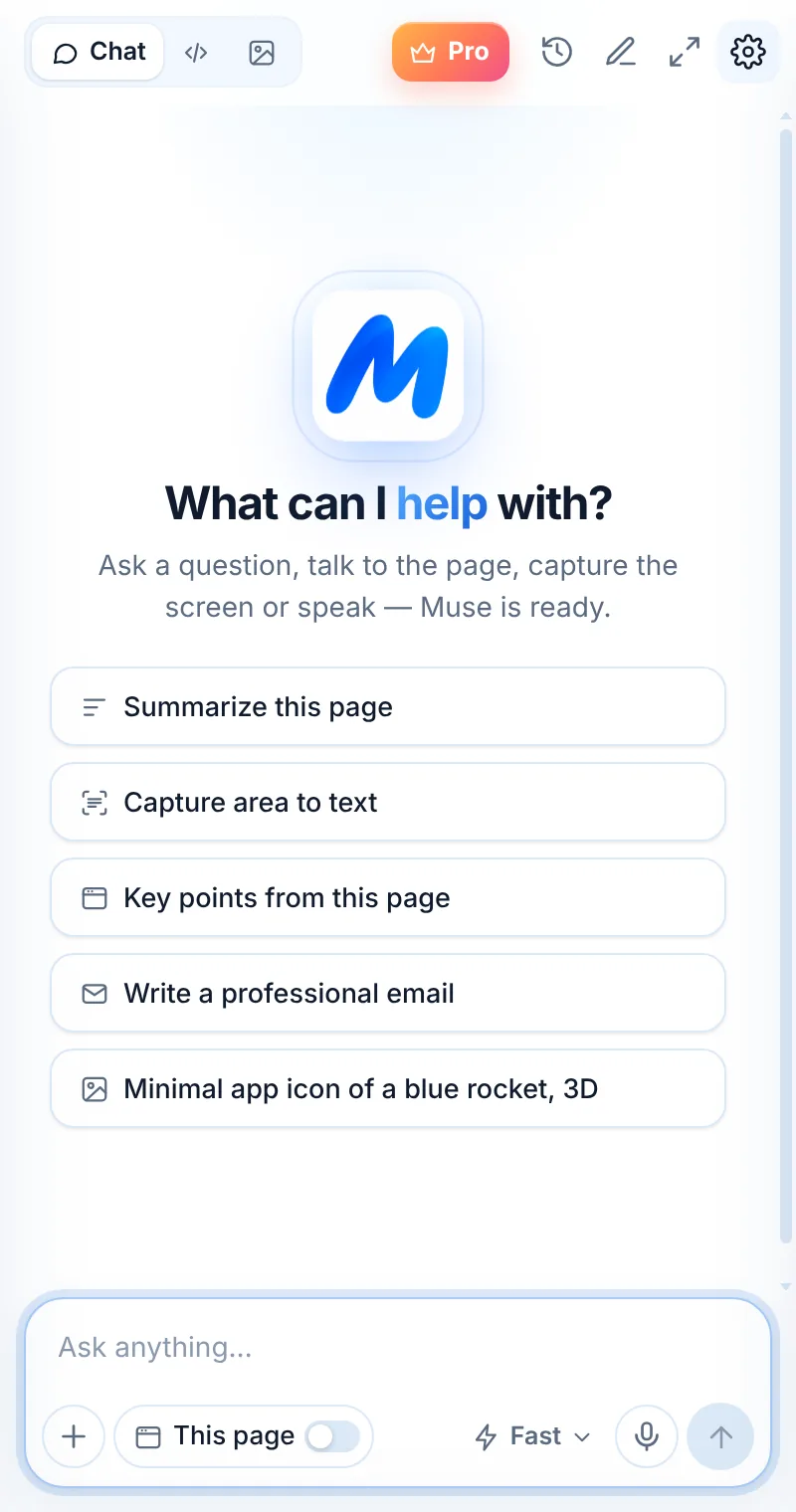
Side panel when you browse. Full window when you focus.
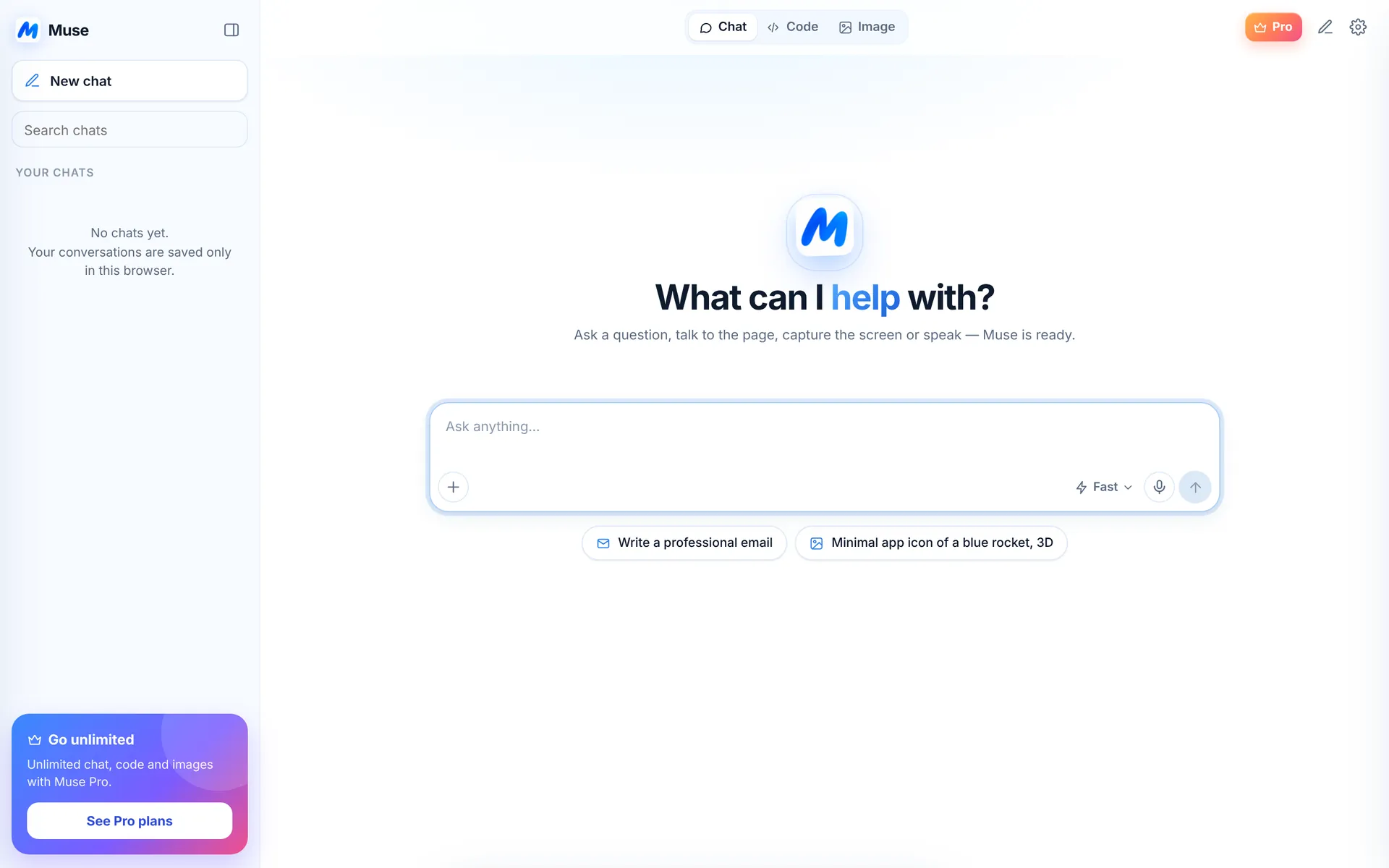
Muse lives in Chrome’s side panel next to any website — and opens in a big full-window view when you need space for long chats, code and images.
Three steps, zero tab-switching
Open the panel
Toolbar icon or Alt+Shift+L.
Work beside the page
Muse stays open as you switch tabs.
Expand when needed
Open in full window for more space.
Always beside the page you’re working on
Muse uses Chrome’s native side panel, so it stays open as you switch tabs and never covers the website.
- Open with the toolbar icon or Alt+Shift+L
- Resize the panel by dragging its edge
- Stays open while you browse
- Chat history and new chat one tap away
Need more room? Go full window.
Open Muse in a full browser tab for long conversations, big code reviews and image work — with your chat history in a sidebar.
- Your chats in a searchable sidebar
- Wide layout for code and tables
- Switch back to the side panel any time
- Same chats, same settings
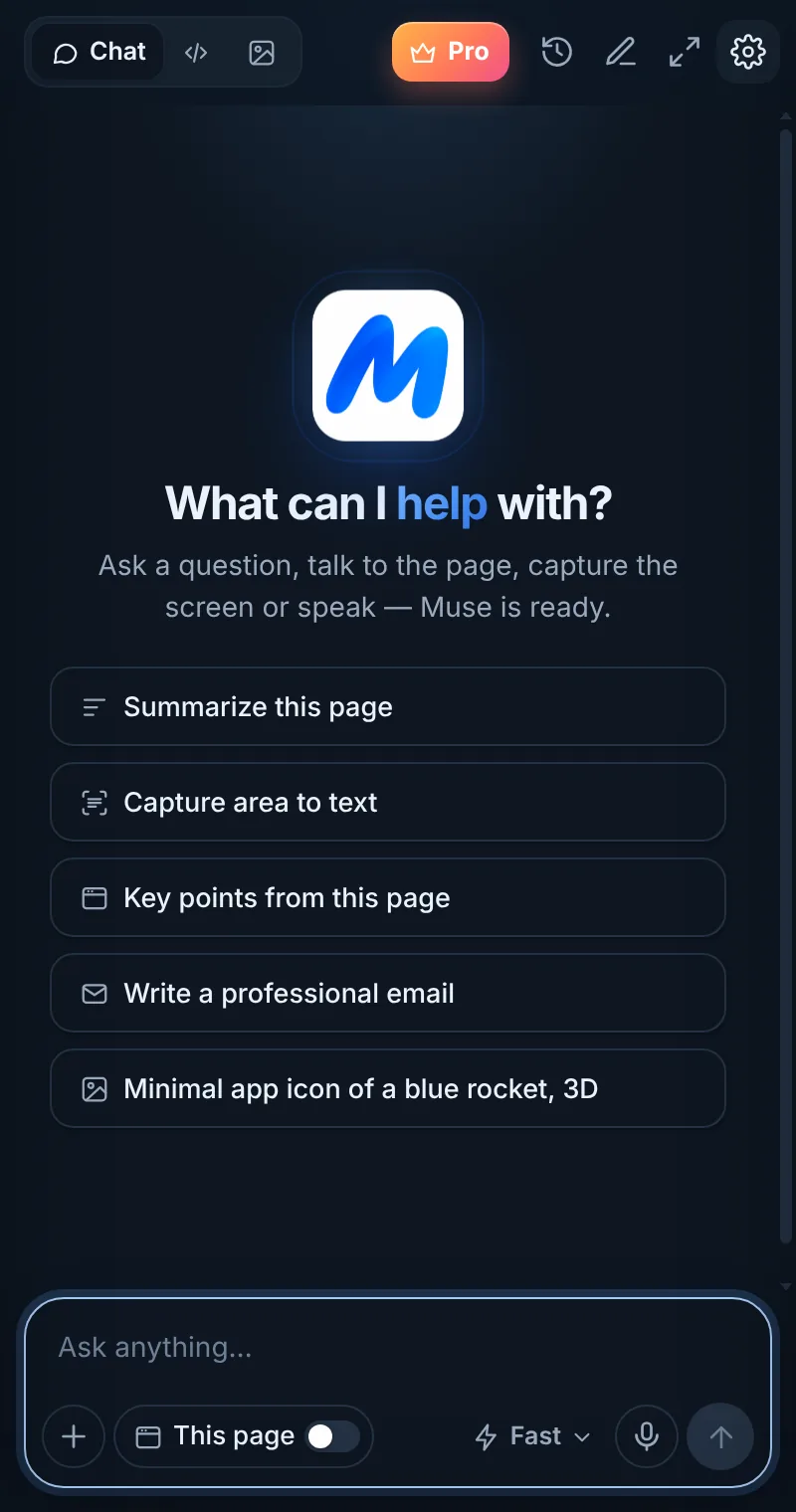
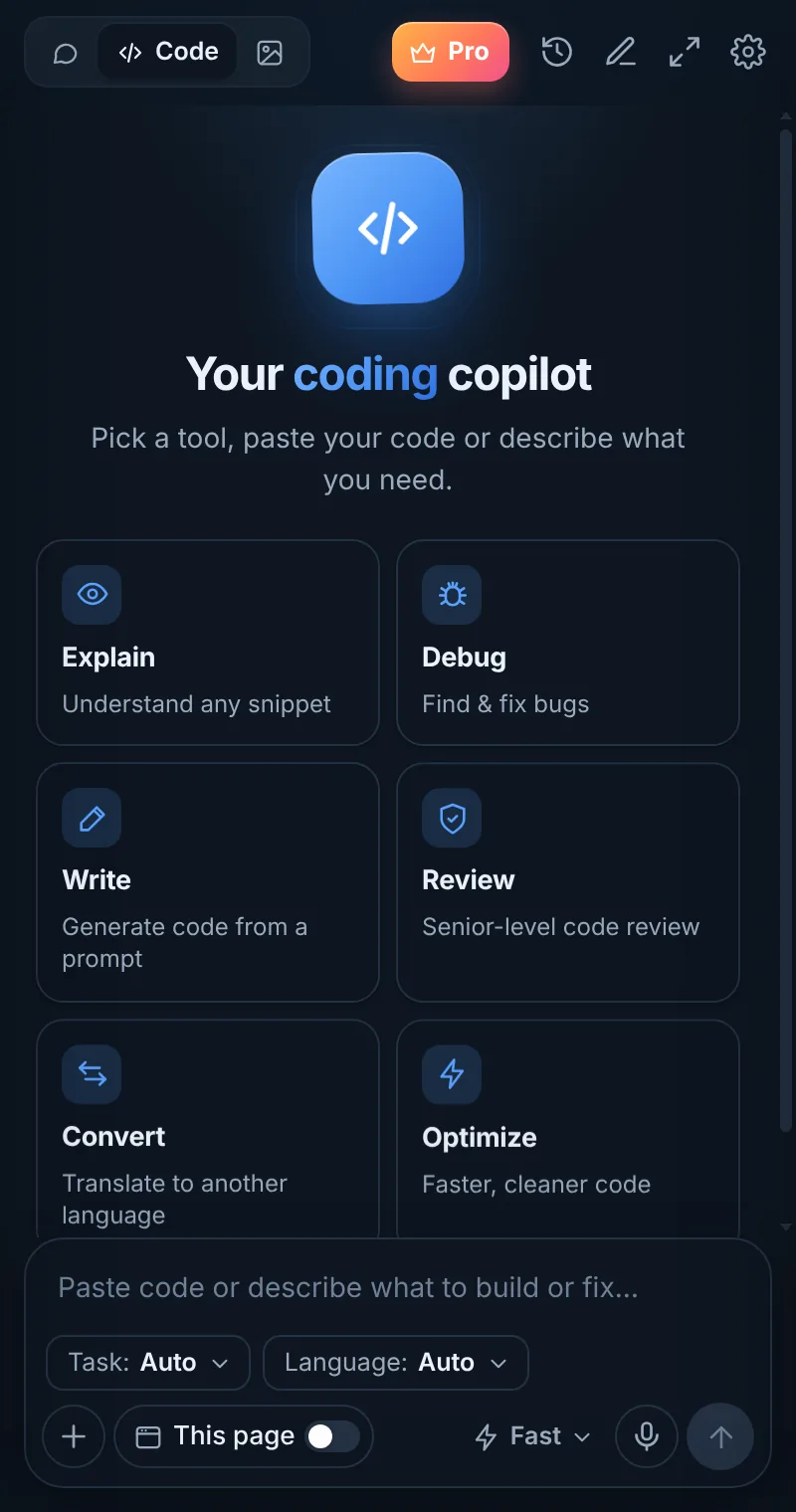
Looks right with your Chrome theme
Common questions
How do I open Muse in a full window?
Click the expand icon at the top of the Muse side panel. To go back, choose “Open in sidebar”.
Can I change the keyboard shortcut?
Yes. Open chrome://extensions/shortcuts and set your own keys for opening Muse and capturing an area.
Does Muse have a dark mode?
Yes. In Settings → Theme choose System, Light or Dark.
Related pages

Your AI assistant is one click away
Add Muse to Chrome for free. Two AI requests a day on the free plan — upgrade only if you need more.