An AI chat that lives next to your work
Ask anything in Chrome’s side panel and get clear, well-formatted answers in your language. Add the current page, a screenshot or your voice as context — no tab-switching, no copy-paste.
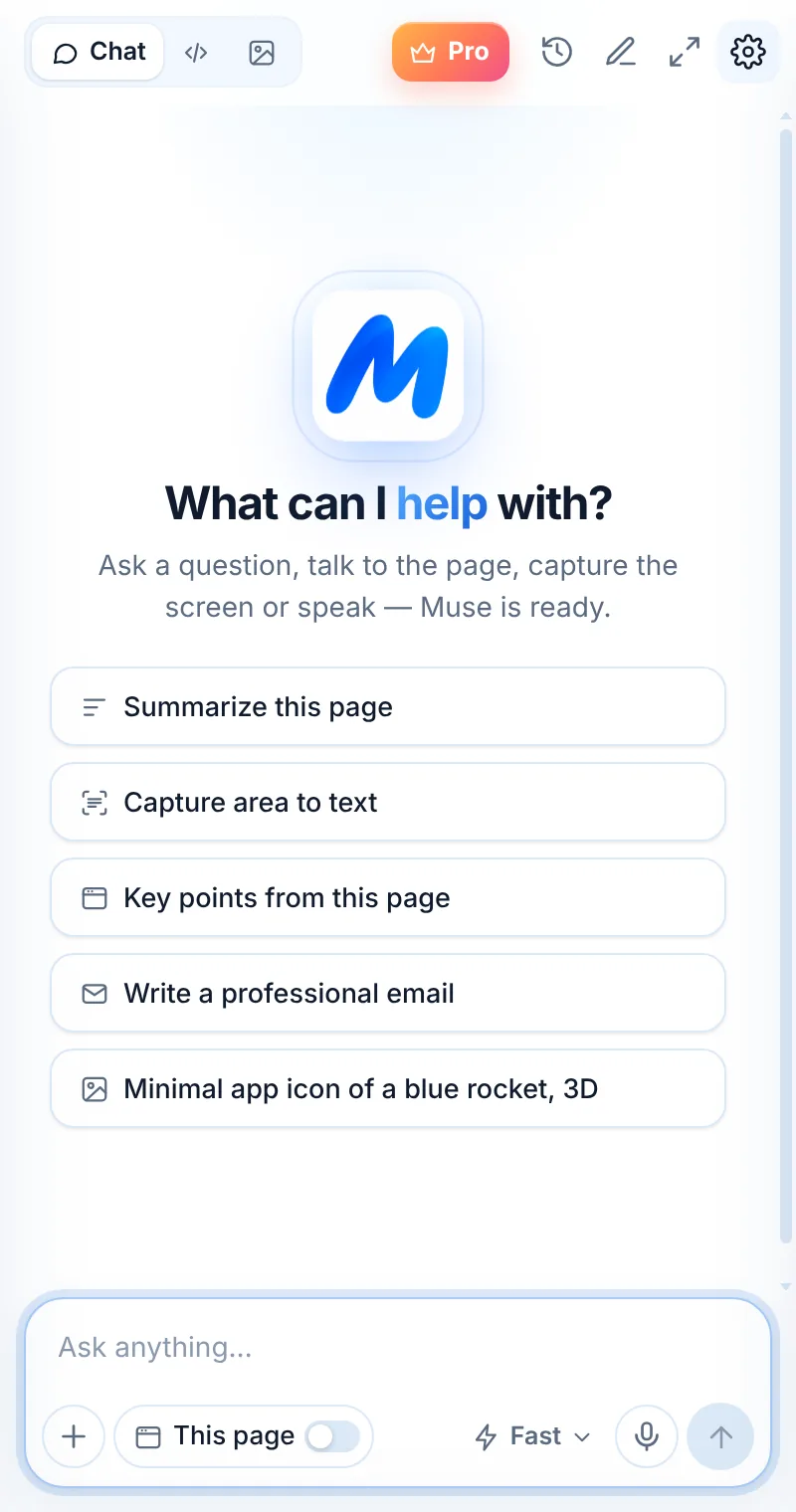
Three steps, zero tab-switching
Open the side panel
Click the Muse icon or press Alt+Shift+L (⌘+Shift+L on Mac).
Ask or pick a suggestion
Type, speak, or tap a suggestion like “Summarize this page” or “Write a professional email”.
Keep the conversation going
Ask follow-ups, copy the answer, or start a new chat. Everything stays in your browser.
Answers that are ready to use
Muse formats answers with headings, lists, tables and code blocks, so you can read them at a glance and copy what you need.
- Replies in the language you write in
- Copy any answer or code block in one click
- Searchable chat history, saved only in your browser
- Start a new chat any time — old ones stay in History
Add the page, an image or your voice
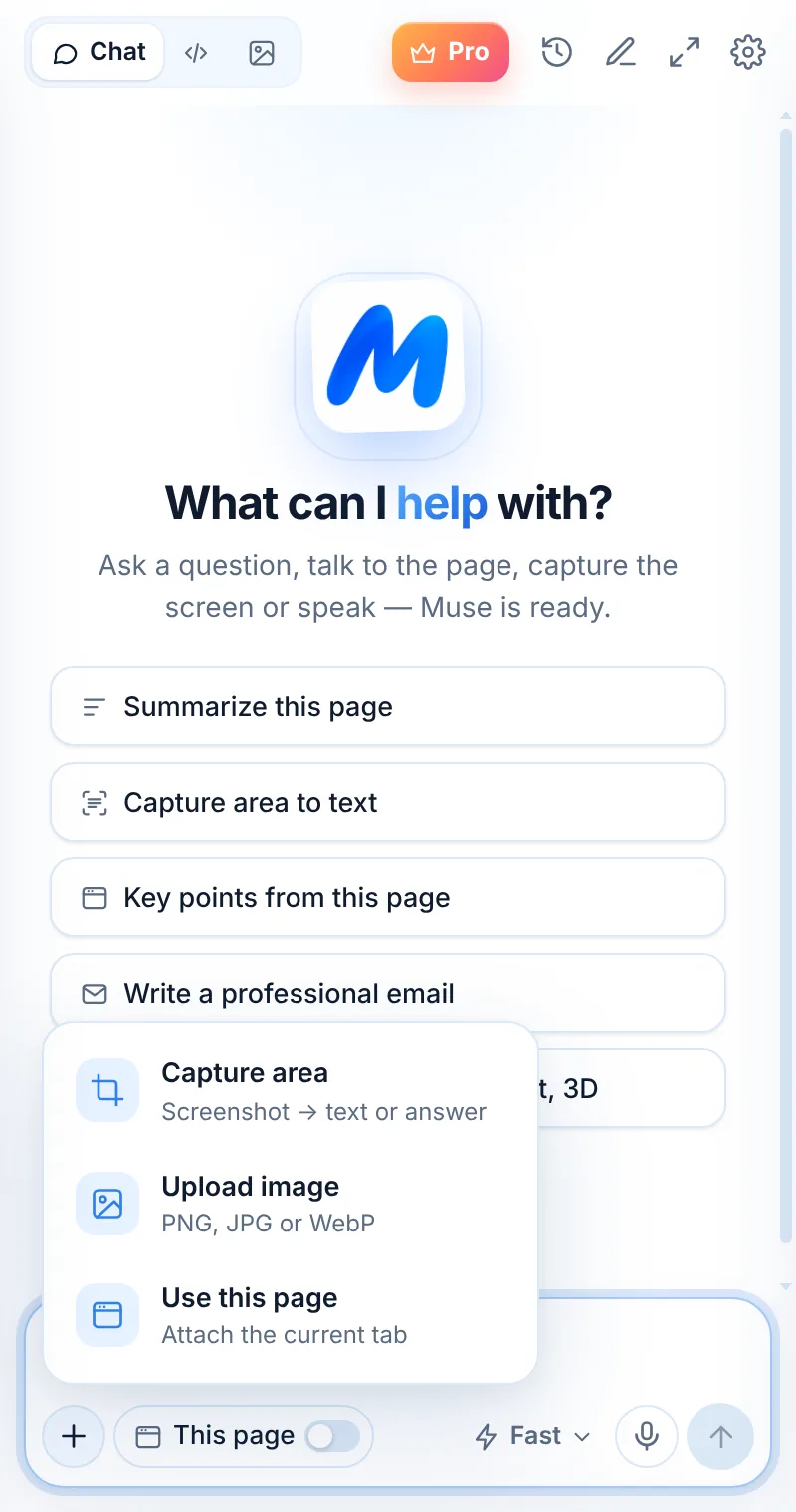
Use the + menu to attach the current tab, capture an area or upload an image. Or tap the mic and talk. Muse uses what you add as context for the answer.
- “This page” — include the current article in your question
- Capture area — screenshot → text or an answer
- Upload image — PNG, JPG or WebP up to 8 MB
- Voice input — speak instead of typing
Everyday tasks, done in the side panel
Write emails and replies
“Write a short, professional email to…” — then make it friendlier, shorter or more formal.
Rewrite and edit text
Fix grammar, change the tone, shorten a paragraph or turn notes into a clean draft.
Explain anything
Concepts, jargon, error messages, contract clauses — explained at the level you ask for.
Plan and brainstorm
Ideas, outlines, checklists, travel plans and to-do lists in seconds.
Translate and localize
Translate between languages and keep the meaning, not just the words.
Learn and study
Step-by-step explanations, quizzes and summaries of what you are reading.
Things to ask
Common questions
Which AI model does Muse chat use?
Muse gives you two options: Muse Fast for quick everyday answers and Muse Smart for deeper reasoning and complex code. Requests are processed through our AI provider, OpenRouter, which routes them to leading models such as those from OpenAI and Google.
Does Muse remember my previous chats?
Your chats are saved in your browser’s local storage and appear in History, where you can search them. They are not stored on Muse servers. You can clear history at any time in Settings.
Can I press Enter to send?
Yes. “Enter to send” is on by default. Use Shift+Enter for a new line, or turn the option off in Settings and send with Ctrl+Enter (⌘+Enter on Mac).
Can Muse answer in my language?
Yes. Muse replies in the language you write in. The interface is available in English, Spanish, French and Italian.
Related pages

Your AI assistant is one click away
Add Muse to Chrome for free. Two AI requests a day on the free plan — upgrade only if you need more.