Explain, read and solve images with AI
Add a picture to any question. Muse explains what it shows, extracts the text, or solves the problem in it — step by step, in Chrome’s side panel.
Three steps, zero tab-switching
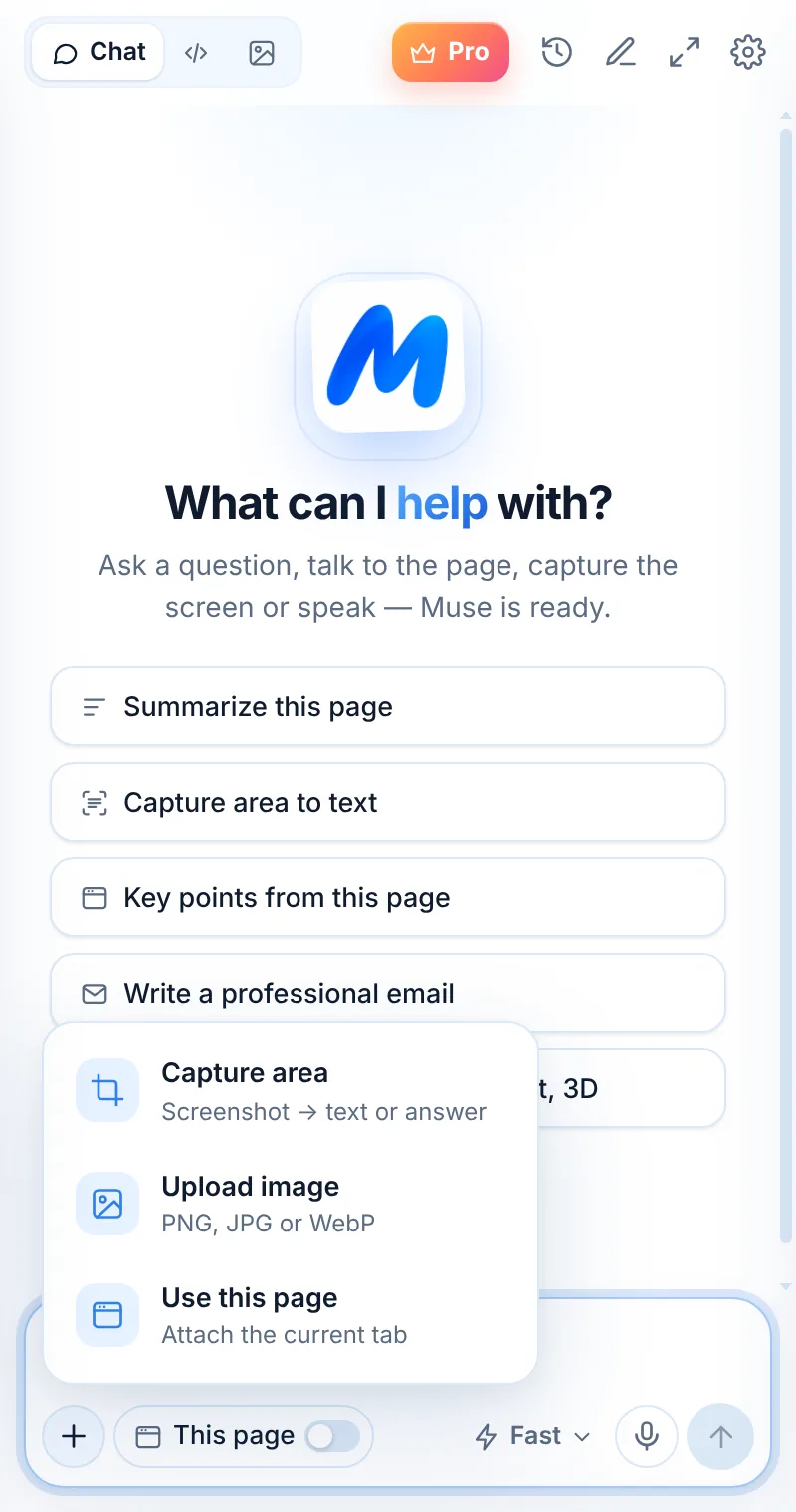
Add an image
Upload, paste, or capture an area of the page.
Choose an action
Explain image, Extract text or Solve — or type a question.
Get the answer
Read the explanation and ask follow-ups.
Ask questions about any picture
Upload a PNG, JPG or WebP, paste an image, or capture part of the page. Then ask what it shows, extract its text, or solve what’s in it.
- Explain image — describe what a photo, diagram or UI shows
- Extract text — get the words out of the image
- Solve — answer a problem with steps
- Up to 4 images per message, 8 MB each
What to ask about an image
Math and science problems
Snap the exercise and get a worked solution with every step.
Charts and graphs
Ask what the trend is and what the numbers mean.
UI and design screenshots
Get feedback on layout, copy and accessibility.
Error screenshots
Find out what went wrong and how to fix it.
Documents and receipts
Extract the text and key details.
Signs and menus
Read and translate text from photos.
Common questions
How do I add an image to a question?
Click + in the composer and choose Upload image, paste an image into the message box, or use Capture area to grab part of the page.
Can Muse solve homework from a picture?
Muse can explain and solve problems shown in an image, step by step. Use it to learn — check answers that matter and follow your school’s rules.
Are uploaded images stored?
No. Images are sent with your message to generate the answer and are not stored on Muse servers.
Related pages

Your AI assistant is one click away
Add Muse to Chrome for free. Two AI requests a day on the free plan — upgrade only if you need more.