Muse AI agent: tasks done, you in control
Give Muse a task — summarize, fix, extract, write, translate, create — and get the finished result in Chrome’s side panel. Agent-style help that never acts on websites without you.
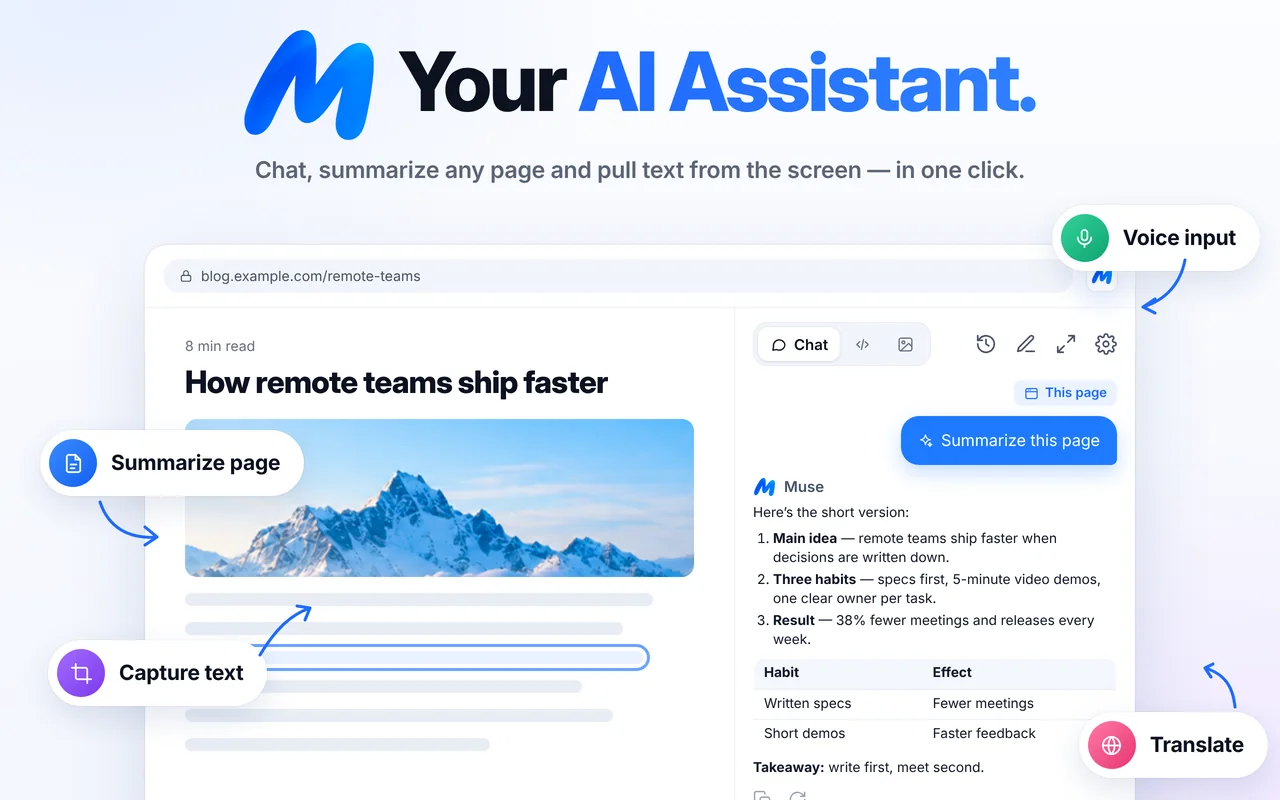
Hand Muse the task, get the finished result
Give Muse a goal in plain words. It uses the page, your selection, a screenshot or your voice as input and returns the finished output — a summary, fixed code, a table, an email, an image.
- Multi-step answers: plan → result → follow-ups
- Context from the page, selection, screenshot or upload
- Coding tasks with dedicated tools
- Nothing happens on a website unless you do it
What Muse does — and what it doesn’t
| Muse AI Assistant | Autonomous browser agents | |
|---|---|---|
| Reads the page you choose | Yes — when you ask | Usually |
| Writes, explains, codes, creates images | Yes | Varies |
| Clicks buttons and fills forms for you | No | Yes |
| Acts in the background | Never | Often |
| Needs broad permissions upfront | No — page access is optional | Usually |
| You stay in control of every step | Always | Depends on settings |
Muse is designed as an agent-style assistant: it takes a task (“summarize this”, “fix this bug”, “extract this table”) and completes it end to end in the side panel — but it never clicks, types or submits anything on websites for you. That keeps you in control and your accounts safe.
Common questions
Is Muse an AI agent?
Muse is an AI assistant with agent-style workflows: you give it a task and it completes it in the side panel using the context you choose. It does not take actions on websites, like clicking or submitting forms.
Why doesn’t Muse click around websites for me?
Acting on websites needs broad permissions and can make mistakes with real consequences. Muse focuses on reading, writing, coding and creating — and leaves every action to you.
Can Muse automate repetitive writing tasks?
Yes — drafts, rewrites, summaries, translations, code and SQL are all one prompt away, and you can reuse prompts from your history.
What permissions does Muse use?
Side panel, storage, active tab, scripting (only after you act), context menus, and optional access to pages that you can grant or revoke at any time.
Related pages

Your AI assistant is one click away
Add Muse to Chrome for free. Two AI requests a day on the free plan — upgrade only if you need more.