Install Muse AI Assistant in one minute
Add Muse to Chrome, pin it to the toolbar and open it with a shortcut. Here’s everything you need — including what each permission does.
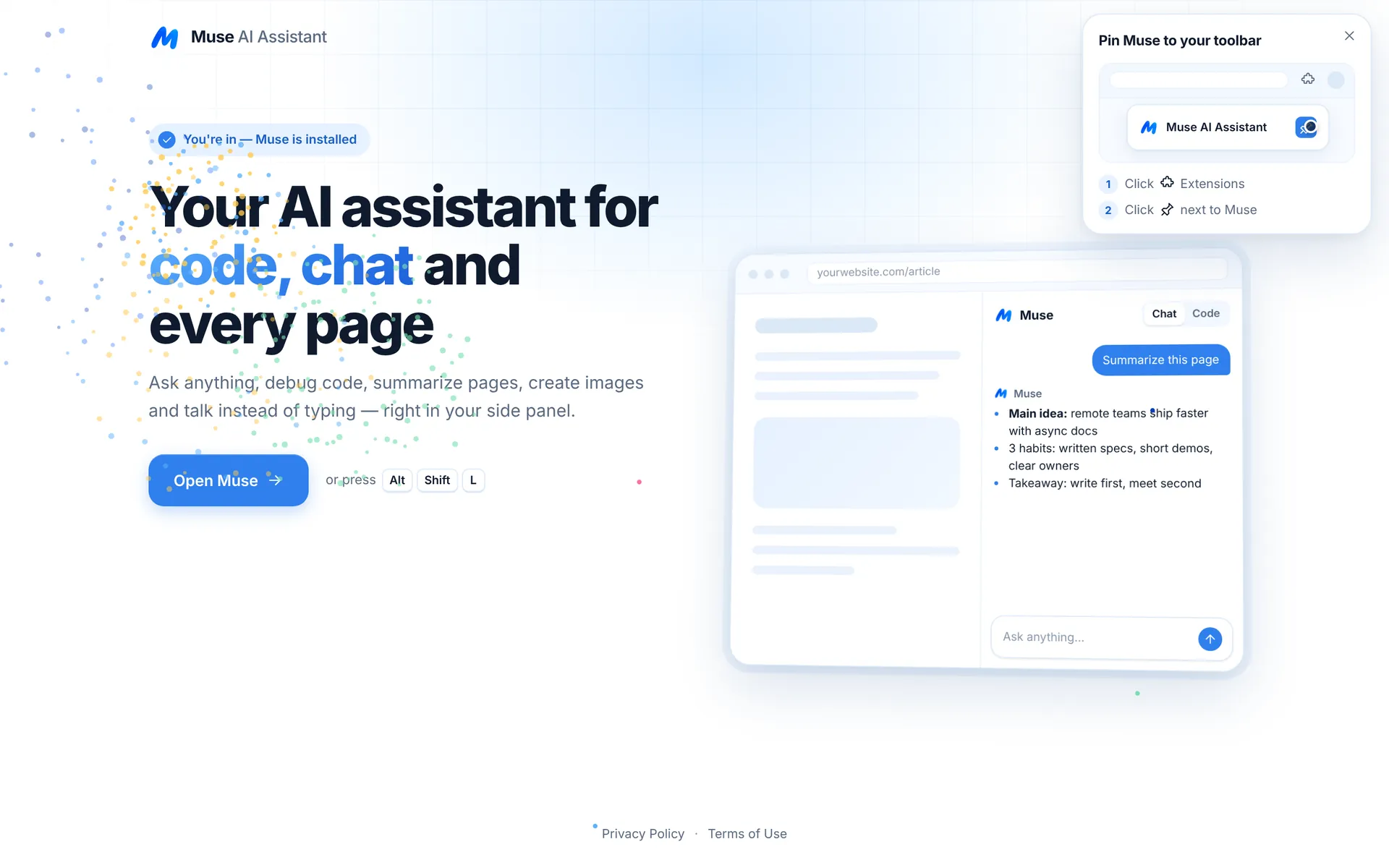
Add Muse from the Chrome Web Store
Click the button, then “Add to Chrome” → “Add extension”. A welcome page opens with a quick tour.
- Free — no account needed
- Chrome 116+ on Windows, macOS, Linux, ChromeOS
- Desktop only — Chrome on phones doesn’t support extensions
- About a minute from click to first answer
Pin it, open it
Click the puzzle-piece Extensions icon, then the pin next to Muse. Open Muse with the icon or Alt+Shift+L (⌘+Shift+L on Mac).
- Short onboarding shows the main features
- Agree to the data notice before your first request
- Allow page access only when you first use “This page”
- Microphone access only when you first use voice
What Muse asks for — and why
| Permission | Why Muse needs it |
|---|---|
| Side panel | To show Muse beside the page |
| Storage | To save settings and chat history in your browser |
| Active tab | To read the tab you’re on when you click Muse or a shortcut |
| Scripting | To read page text or show the capture overlay — only after you act |
| Context menus | To add right-click actions |
| Access to pages (optional) | Requested the first time you use This page or Capture area from the panel; you can revoke it any time |
Common questions
Does Muse work in Edge, Brave or Opera?
Muse is built and tested for Google Chrome. Other Chromium browsers may install it from the Chrome Web Store, but side-panel support varies.
How do I uninstall Muse?
Right-click the Muse icon → Remove from Chrome, or go to chrome://extensions. If you have Muse Pro, cancel it in Settings → Manage subscription first — uninstalling doesn’t cancel it.
How do I update Muse?
Chrome updates extensions automatically. You can see your version in chrome://extensions.
Related pages

Your AI assistant is one click away
Add Muse to Chrome for free. Two AI requests a day on the free plan — upgrade only if you need more.