Study smarter with an AI tutor in your browser
Summarize readings, get step-by-step explanations from a photo, learn to code and quiz yourself — with Muse in Chrome’s side panel.
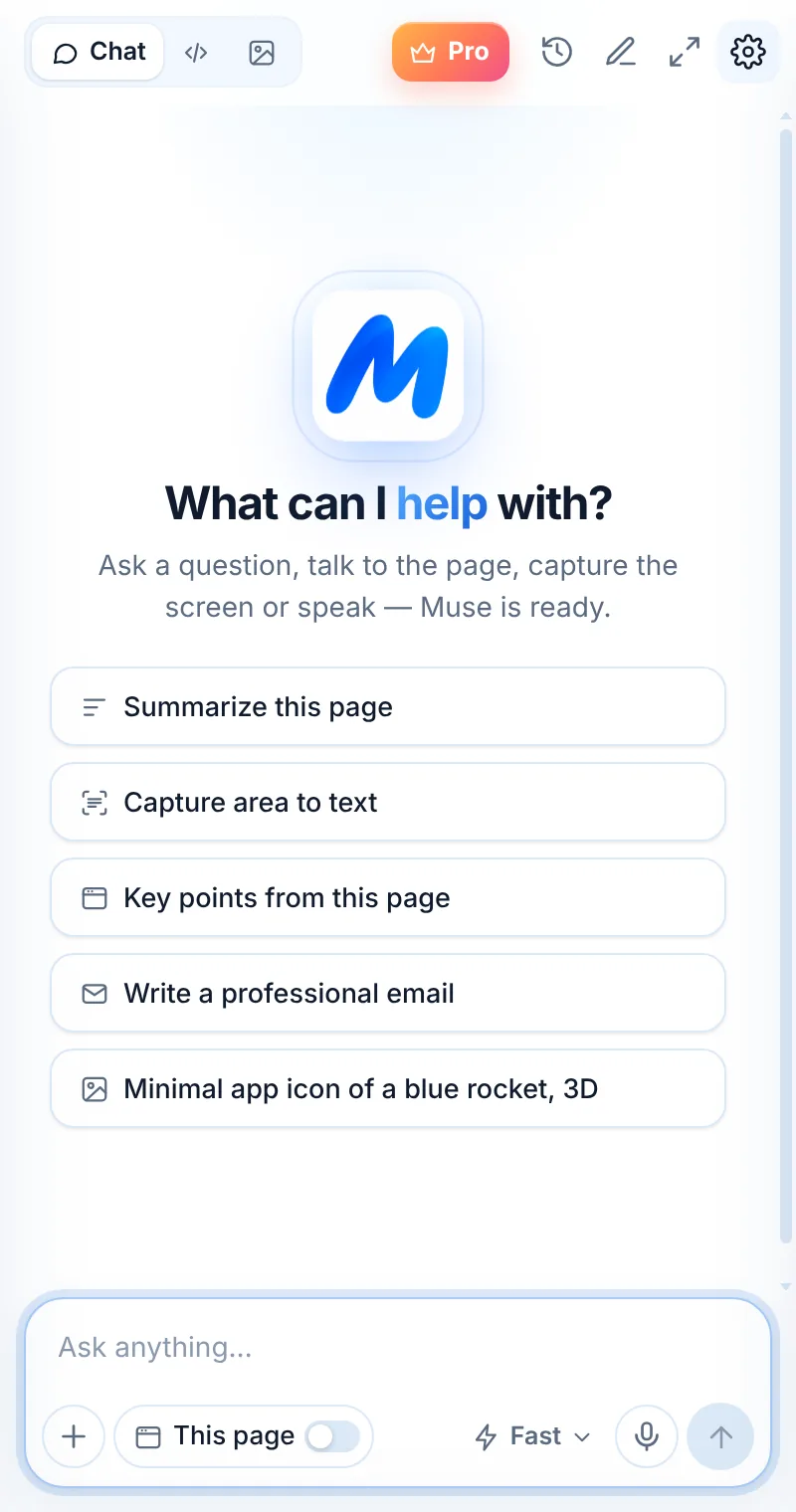
How it fits into your day
Open your reading
Any article, course page or documentation page.
Ask for the gist
Turn on This page → “Key points from this page”.
Test yourself
“Quiz me with 5 questions” — then check your answers.
An explainer that meets you where you are
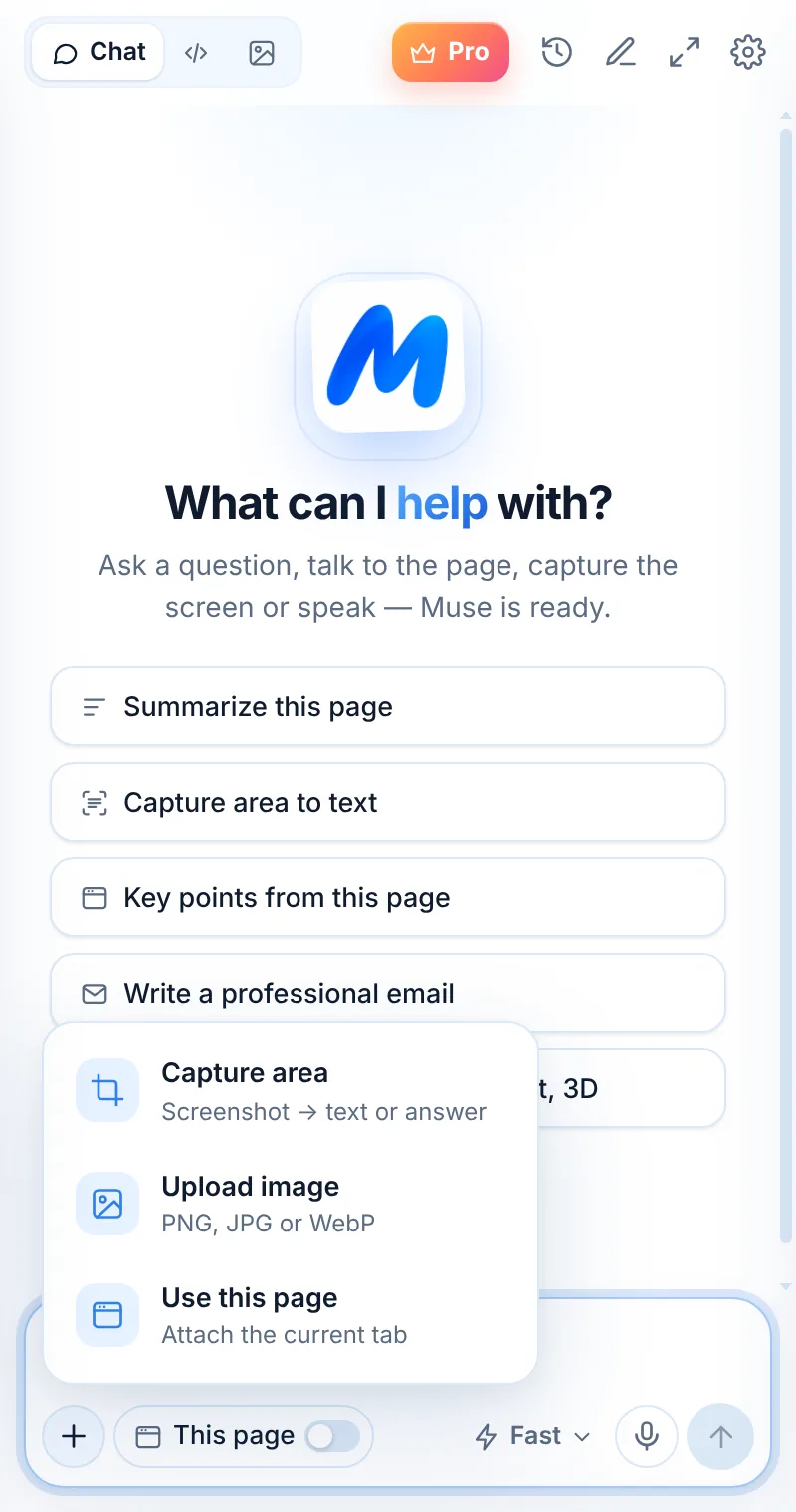
Ask Muse to explain at your level, show the steps, quiz you or summarize your reading — then check your understanding with follow-ups.
- “Explain this like I’m new to the topic”
- Step-by-step solutions from a photo of a problem
- Summaries and key points from long readings
- Translate and define unfamiliar terms
Ways students use Muse
Summarize readings
Turn a long article into key points before class.
Learn moreUnderstand problems
Upload a photo and get a step-by-step explanation.
Learn moreLearn to code
Explain code line by line and debug assignments.
Learn moreLanguage learning
Translate selections and ask about grammar.
Learn moreMake study notes
Turn material into flashcards or a quiz.
Ask out loud
Talk through a question with voice input.
Learn moreThings to ask
Common questions
Is it okay to use Muse for homework?
Use Muse to understand material and check your thinking. Follow your school’s rules on AI use, and always do your own work where required.
Is Muse free for students?
Everyone gets 2 free requests a day. Muse Pro’s yearly plan ($34.99) works out to about $0.67 a week.
Can Muse quiz me?
Yes — ask “Quiz me with 5 questions on this page” with This page turned on.
Related pages

Your AI assistant is one click away
Add Muse to Chrome for free. Two AI requests a day on the free plan — upgrade only if you need more.