AI in your right-click menu
Select text on any website and ask Muse about it, explain code, summarize or translate it — in one click. Plus quick access to screen capture and page questions.
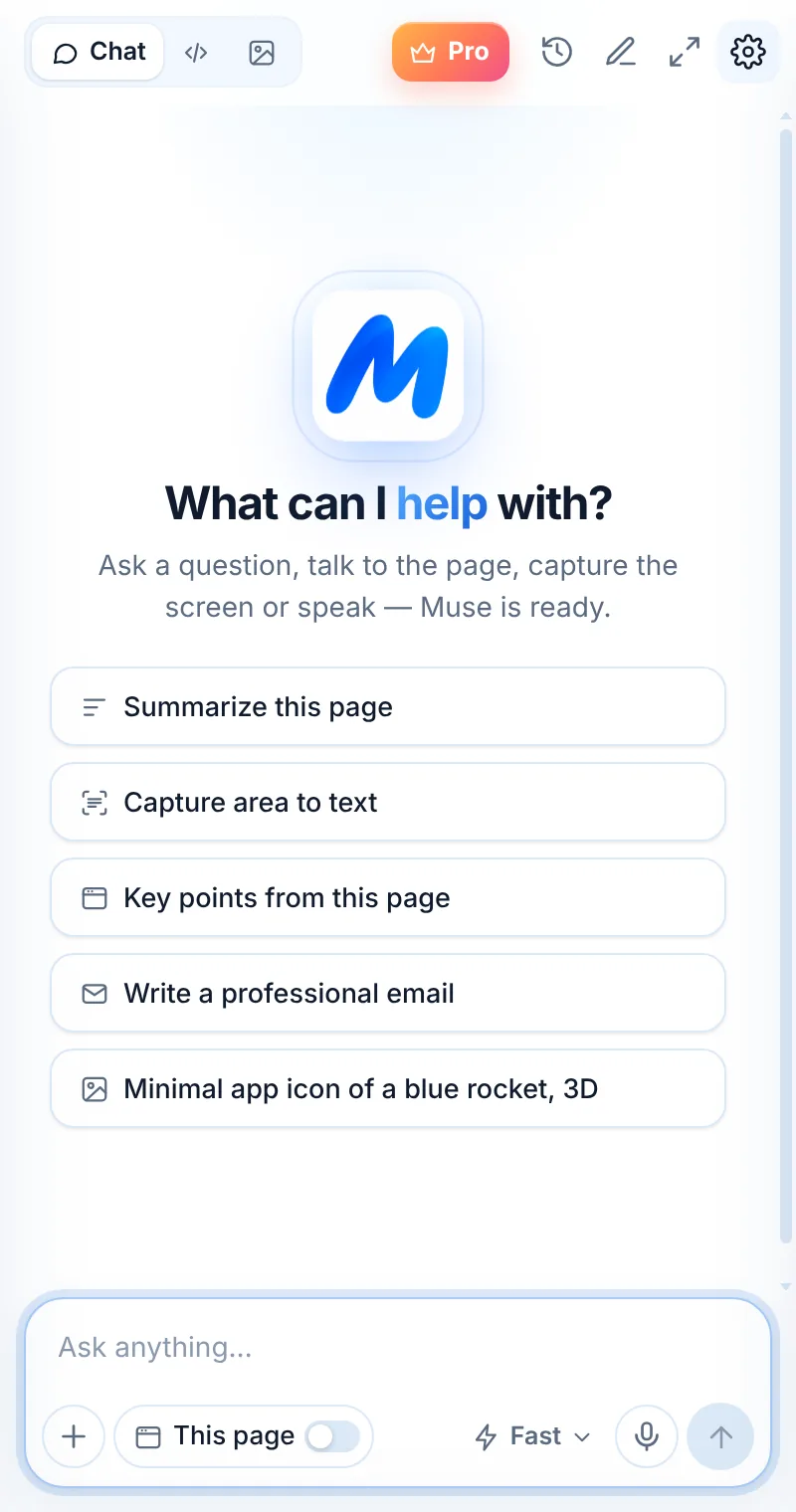
Three steps, zero tab-switching
Select text
Highlight a sentence, paragraph or code snippet.
Right-click
Choose Ask, Explain this code, Summarize or Translate.
Read the answer
Muse opens in the side panel with the result.
Highlight. Right-click. Done.
The fastest way to use AI on what you’re reading: select any text, right-click and pick an action. Muse opens with the answer.
- Works on any normal website
- No copy-paste into a chat
- Sends only the text you selected
- Answers stay in your Muse history
Every right-click action
| Action | Where | What it does |
|---|---|---|
| Ask Muse about “…” | Selected text | Opens Muse with your selection as context for a question |
| Explain this code | Selected text | Explains the selected snippet step by step |
| Summarize selection | Selected text | Summarizes the text in clear bullet points |
| Translate selection | Selected text | Translates into your interface language (or into English if it already is) |
| Capture area to text | Any page | Starts a screen capture |
| Ask Muse about this page | Any page | Opens Muse with the current page attached |
Common questions
Which language does “Translate selection” use?
It translates into your Muse interface language. If the text is already in that language, Muse translates it into English.
Can I remove the menu items?
The items appear only in Chrome’s right-click menu. You can disable or remove the extension in chrome://extensions at any time.
Does right-click send the whole page?
No. Text actions send only the text you selected. “Ask Muse about this page” sends the current page, only when you click it.
Related pages

Your AI assistant is one click away
Add Muse to Chrome for free. Two AI requests a day on the free plan — upgrade only if you need more.