Optimize code with AI — faster and cleaner
Paste slow or messy code and Muse makes it faster, simpler and easier to read — and explains each change, so you learn the why.
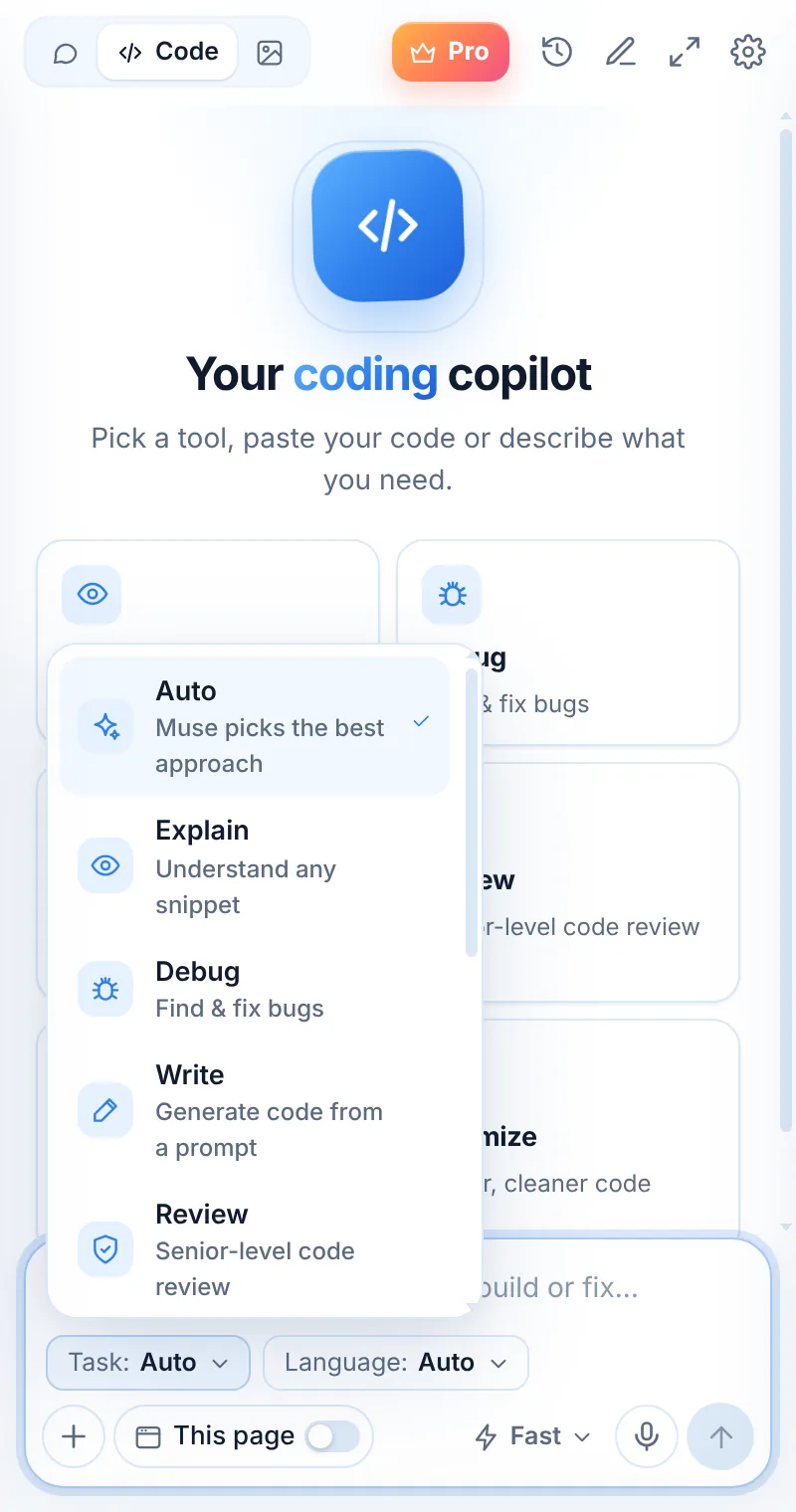
Speed-ups with the reasoning
Optimize mode looks for algorithmic wins, repeated work and needless allocations, then shows a cleaner version with the trade-offs explained.
- Big-O improvements explained simply
- Removes duplicated logic
- Keeps behavior the same
- Suggests what to measure
const common = a.filter(x => b.includes(x));
const setB = new Set(b);
const common = a.filter(x => setB.has(x));
Optimize in three steps
Switch to Code
Open Muse and tap Code in the mode switcher.
Pick “Optimize”
Choose the task and, optionally, the language.
Paste and send
Paste your code or describe what you need — then ask follow-ups.
Things to ask
Optimize: common questions
Will optimization change what my code does?
Muse aims to keep behavior identical and calls out any edge cases. Run your tests to confirm.
Can it optimize SQL?
Yes — or use the SQL tool for query-specific advice like indexes and rewrites.
Does it profile my code?
No. Muse reasons about the code you paste. Use a profiler to confirm real-world gains.
Related pages

Your AI assistant is one click away
Add Muse to Chrome for free. Two AI requests a day on the free plan — upgrade only if you need more.