Speak instead of typing — Muse listens
Muse’s voice input turns your speech into a message in seconds. Ask long questions, dictate drafts or describe a bug out loud, right in Chrome’s side panel.
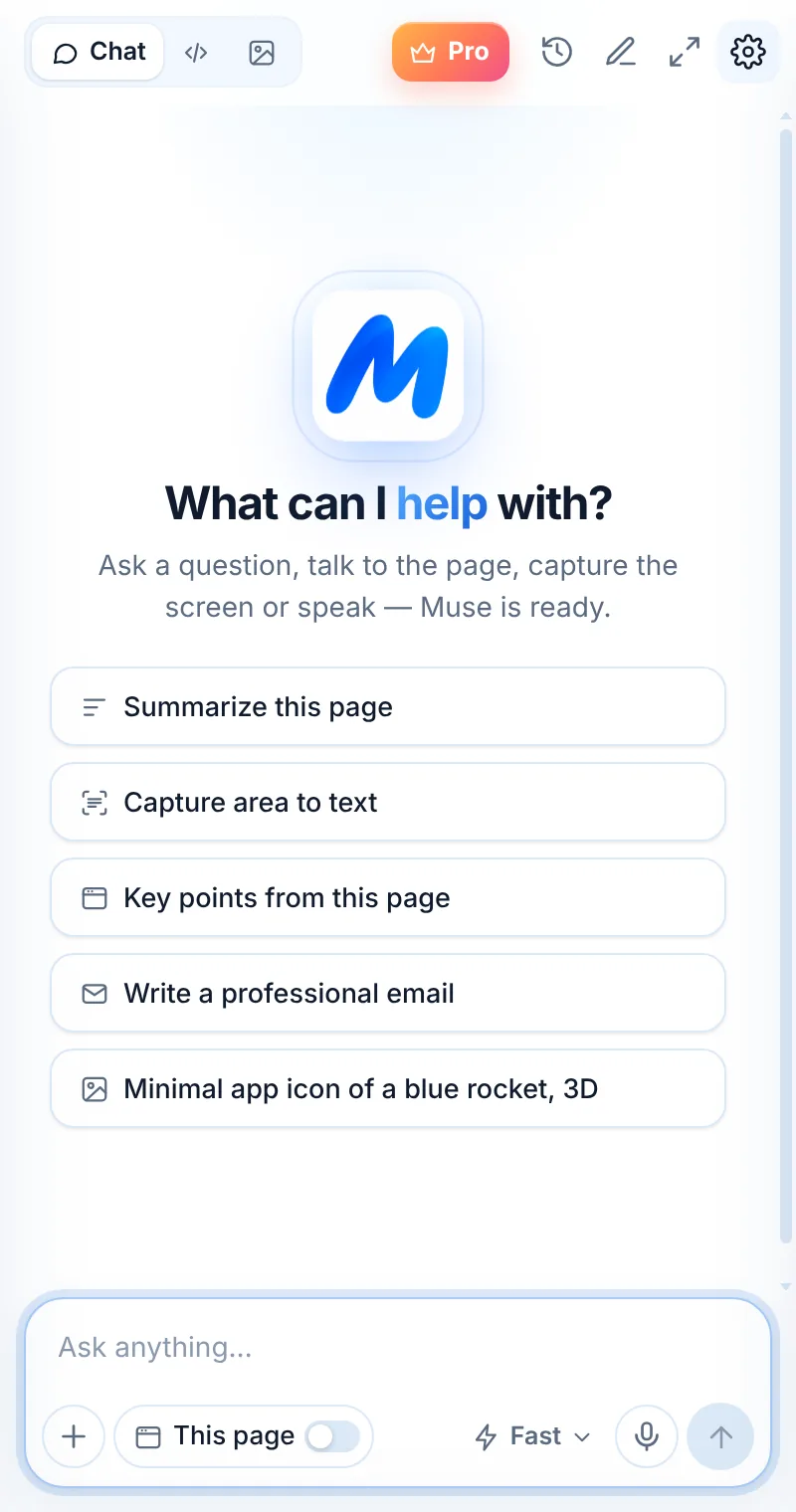
Three steps, zero tab-switching
Tap the mic
The microphone sits next to Send in the composer.
Allow it once
Chrome asks for microphone access the first time.
Speak and send
Tap done — your words appear as a message.
Talk to Muse like a colleague
Tap the mic, say what you need, tap done. Muse turns your speech into text and sends it like any other message.
- Great for long questions and brain dumps
- Works in Chat, Code and Image modes
- Records only while the mic is on
- Recordings are converted to text and not stored
Faster than typing for many tasks
Save time
Most people speak several times faster than they type.
Draft out loud
Dictate a rough email or post, then ask Muse to clean it up.
Think aloud
Explain a problem naturally and let Muse structure it.
Common questions
How do I turn on voice input?
Tap the microphone in the Muse composer. The first time, Chrome opens a small tab to ask for microphone access — allow it once and return to the side panel.
Why does Chrome open a tab for the microphone?
Chrome doesn’t show permission prompts inside the side panel, so Muse opens a tiny page where you can allow the microphone. It closes automatically when you’re done.
Is my voice recorded or stored?
Muse records only while the mic button is on. The recording is turned into text to create your message and is not stored on Muse servers.
The microphone is blocked — what now?
Click the icon on the left of the address bar on the Muse microphone page, allow the microphone, then try again.
Related pages

Your AI assistant is one click away
Add Muse to Chrome for free. Two AI requests a day on the free plan — upgrade only if you need more.