Turn any screenshot into text or an answer
Capture any area of a web page and Muse reads the text, tables or code in it — then explains it or solves it. A fast OCR and image assistant built into Chrome’s side panel.
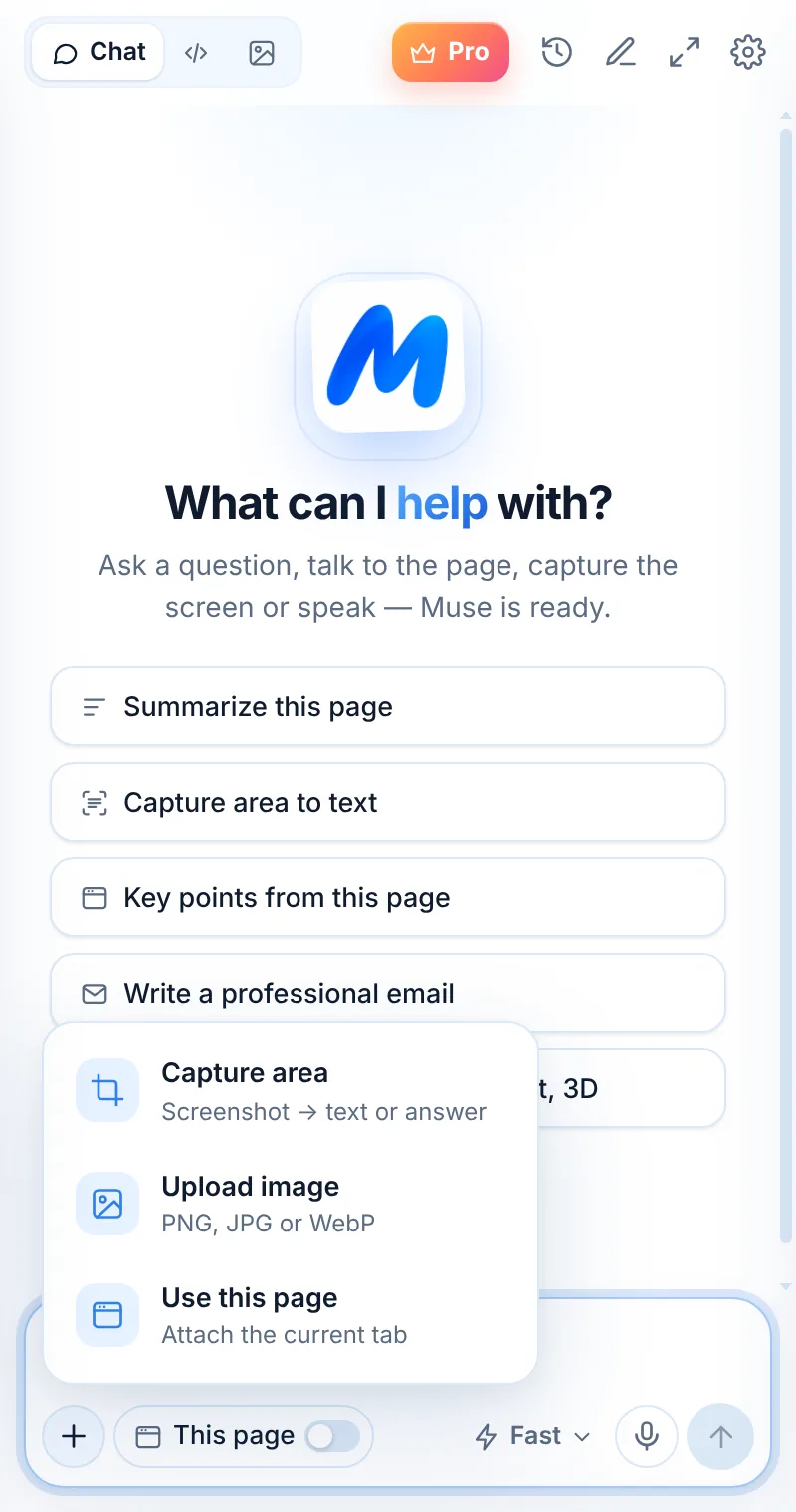
Three steps, zero tab-switching
Start a capture
Press Alt+Shift+S or open + → Capture area.
Drag over the area
Select the text, chart, code or dialog you need.
Extract, explain or solve
Pick an action or ask your own question.
Drag. Release. Read.
Press Alt+Shift+S or choose Capture area from the + menu, then drag over anything on the page. Muse sends that area and offers three quick actions.
- Extract text — copy the text, table or code from the image
- Explain — what a chart, diagram or UI shows
- Solve — answer a problem with the steps shown
- Or type your own question about the capture
Text from places you can’t select
Images, slides inside video players, screenshots in docs, code in tutorials, error popups — if it is on the screen, Muse can read it.
- Works on any normal website
- Reads code with formatting kept in code blocks
- Understands tables and turns them into text
- Upload or paste images too — up to 4 per message

What people capture
Code from video tutorials
Grab the code shown in a video and get it as text you can paste.
Charts and dashboards
Get the numbers and the trend explained in a sentence.
Error dialogs
Capture the error and ask why it happens and how to fix it.
Scanned documents
Pull text out of images of letters, receipts and slides.
Homework and exercises
Get a step-by-step explanation of a problem.
Text in other languages
Extract text from an image and translate it in the same chat.
Common questions
How do I copy text from an image in Chrome?
Open Muse, press Alt+Shift+S (or + → Capture area), drag over the image and choose Extract text. Muse returns the text, which you can copy in one click.
Can I capture pages that block screenshots?
Chrome’s own pages and the Chrome Web Store can’t be captured by any extension. Most other websites work. Videos protected by DRM may show as black.
What image formats can I upload?
PNG, JPG and WebP, up to 8 MB each and up to 4 images per message.
Are my screenshots stored?
No. Captures are sent only when you choose to, used to answer you and not stored on Muse servers.
Related pages

Your AI assistant is one click away
Add Muse to Chrome for free. Two AI requests a day on the free plan — upgrade only if you need more.